How to Create a Video Brand That Matches Your Style Guide, Step by Step
Turn a brand style guide into a Reelwire brand: logo, eight colours, three fonts, texts, films and post text, step by step with screenshots of every setting.

Key takeaways
- A style guide is a document of rules; a Reelwire brand is the same rules as settings, applied to every clip on every channel that wears it, so nobody has to remember them.
- Most of a style guide maps one to one: logo, eight colours, three fonts, a presenter badge, background, intro, outro, stinger, sound, the lines on the clip and the text under every post.
- Decide the colours by role, not by order: two surfaces, a border, one brand colour for what matters, a colour for up and one for down, and two text colours that are legible on the surfaces.
- Check the brand on real clips before any channel wears it: the editor's review is an illustration, and a template's Theme decides whether a clip wears your colours or the style's own.
Every organisation that has been around for a while has a style guide somewhere: a PDF with the logo on a clear background, the colour codes, the typefaces, a paragraph on tone of voice and the legal line. It is written for people, and people forget it. The tenth video made in a hurry on a Friday is where a brand quietly drifts: a colour picked by eye, a different font because the right one was not installed, a legal line left off.
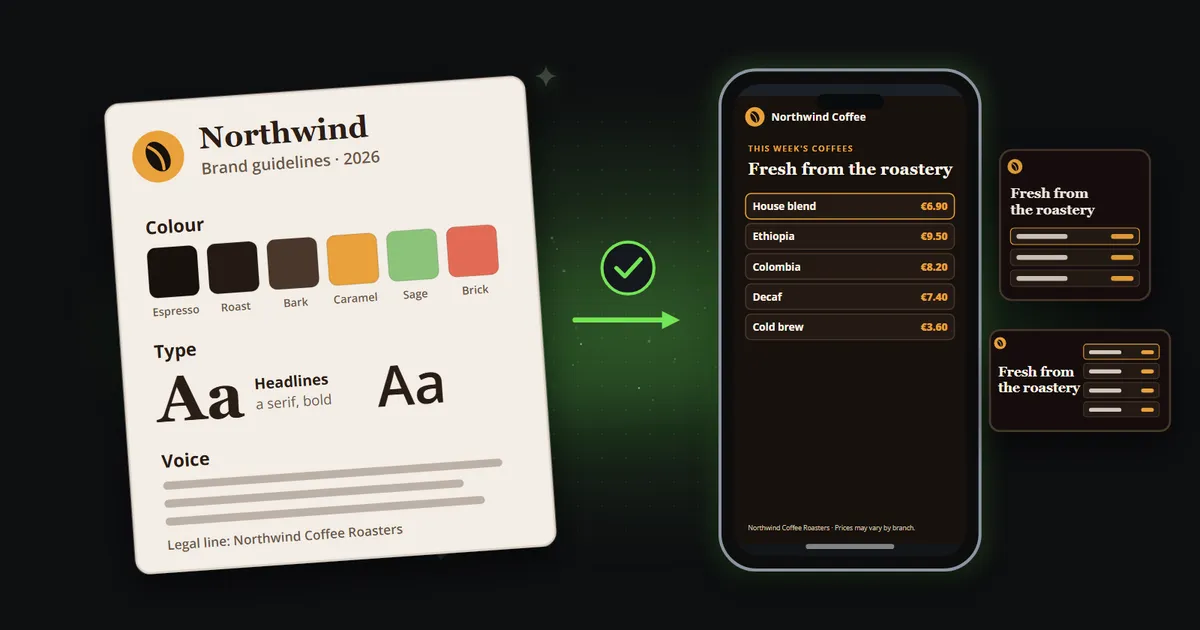
A Reelwire brand is the same style guide as settings. You fill it in once, every channel wears it, and every clip on those channels is drawn with it, whoever asked for the clip and whenever. This guide walks through creating a brand that matches your style guide, setting by setting, with screenshots of each, using a fictional coffee roaster, Northwind Coffee, as the example.
What do you need from your style guide?
Before opening anything, collect what the brand will ask for. Most of it is in any style guide, and the rest is a decision worth making once rather than per video:
| From your style guide | In the Reelwire brand | What to prepare |
|---|---|---|
| Logo | Logo | A PNG, SVG, WebP, JPEG or GIF on a clear background, cropped without empty margins |
| Colour palette | Eight colours | The hex codes, sorted by role (see below) |
| Typefaces | Headline, body and frame fonts | Your font files (WOFF2, WOFF, TTF or OTF) and the licence that allows them in video |
| Imagery | Background | One picture or video that survives a crop to every shape, or one per shape |
| Motion | Stinger, intro and outro | Short films, if you have them; Reelwire can make them too |
| Sound | Sound | An MP3 or WAV, and where it should play |
| Spokesperson | Badge | A picture, a name and a role, if a face or a mascot belongs on the clip |
| Legal line, website | Texts on the clip | Two short lines for the top of every clip, two for the bottom |
| Boilerplate | Post text | A description, hashtags and a link, 300 characters together |
| Markets | Languages | What the brand says differently in each language |
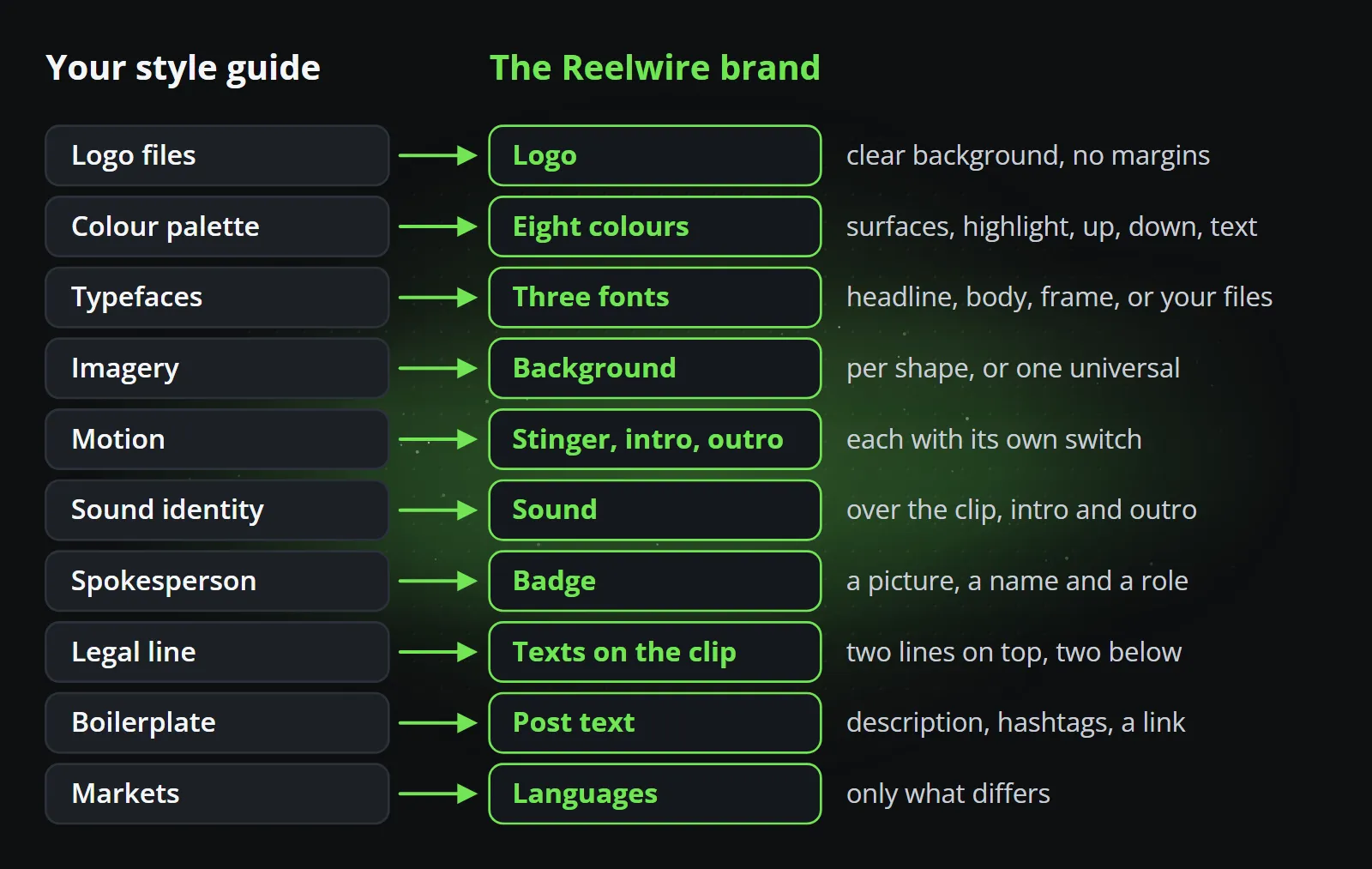
Step 1: create the brand
Brands live under Publication in the dashboard’s sidebar. Add new brand opens the editor empty; nothing exists until you press Create, so you can open it, look around and close it again. Every new workspace starts with a Default brand wearing example files, a placeholder you can rename and fill in rather than starting from nothing.
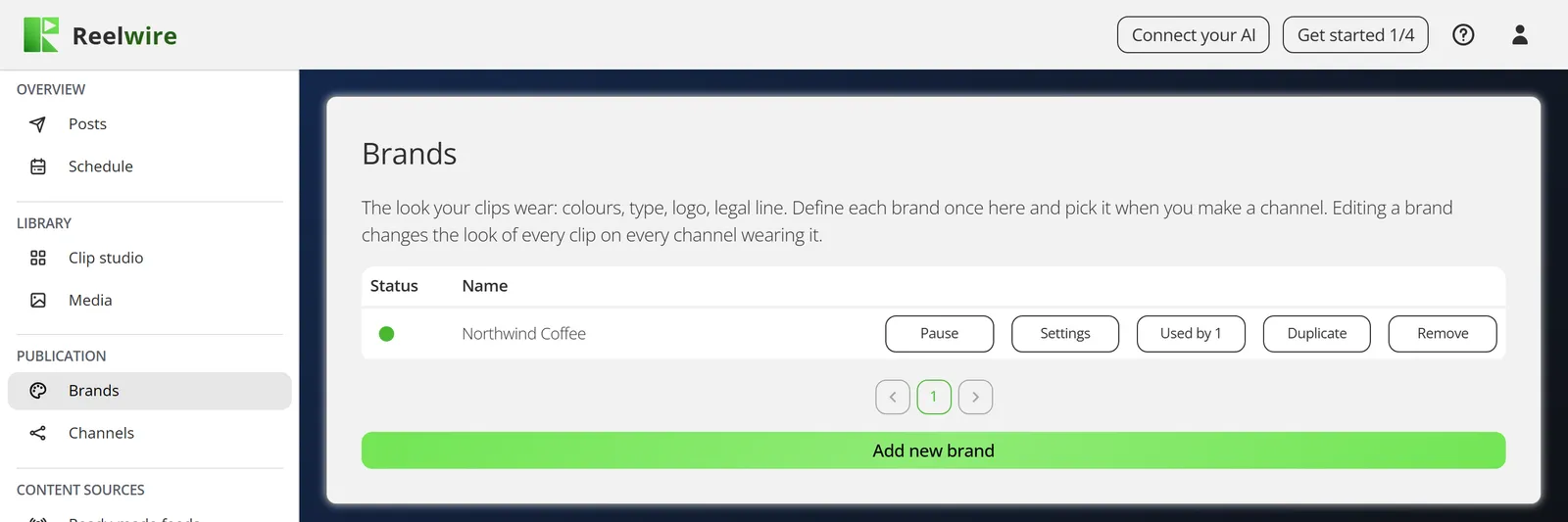
The Brand name is only ever shown in the dashboard, never drawn on a clip, so name it the way your team will recognise it: “Northwind Coffee”, or “Northwind Coffee DE” if a German version will need a brand of its own later.
Step 2: the logo
Upload the logo the style guide gives for dark or light grounds, whichever your clips will mostly sit on. Any shape works: a wide wordmark is drawn as tall as a square mark would be and takes the width it needs. What matters is the file: a clear background, and no empty margin around the mark, because a margin in the file becomes a margin on every clip. How large the logo is drawn is chosen per clip, in the template’s settings, as Standard, Small or Large.
Step 3: the eight colours
This is where a style guide needs a little translating. A palette in a guide is usually a list: primary, secondary, accents, neutrals. A brand in Reelwire wants colours by role, because a template uses them by role:
- Background, Card and Border: the surfaces, from the page to the panels on it and their edges.
- Brand colour: the highlight, the bar that matters, the figure the viewer should see first.
- Positive and Negative: up and down, gained and lost. Not necessarily green and red, if your guide says otherwise.
- Primary text and Secondary text: the words, legible on the background and on the cards.
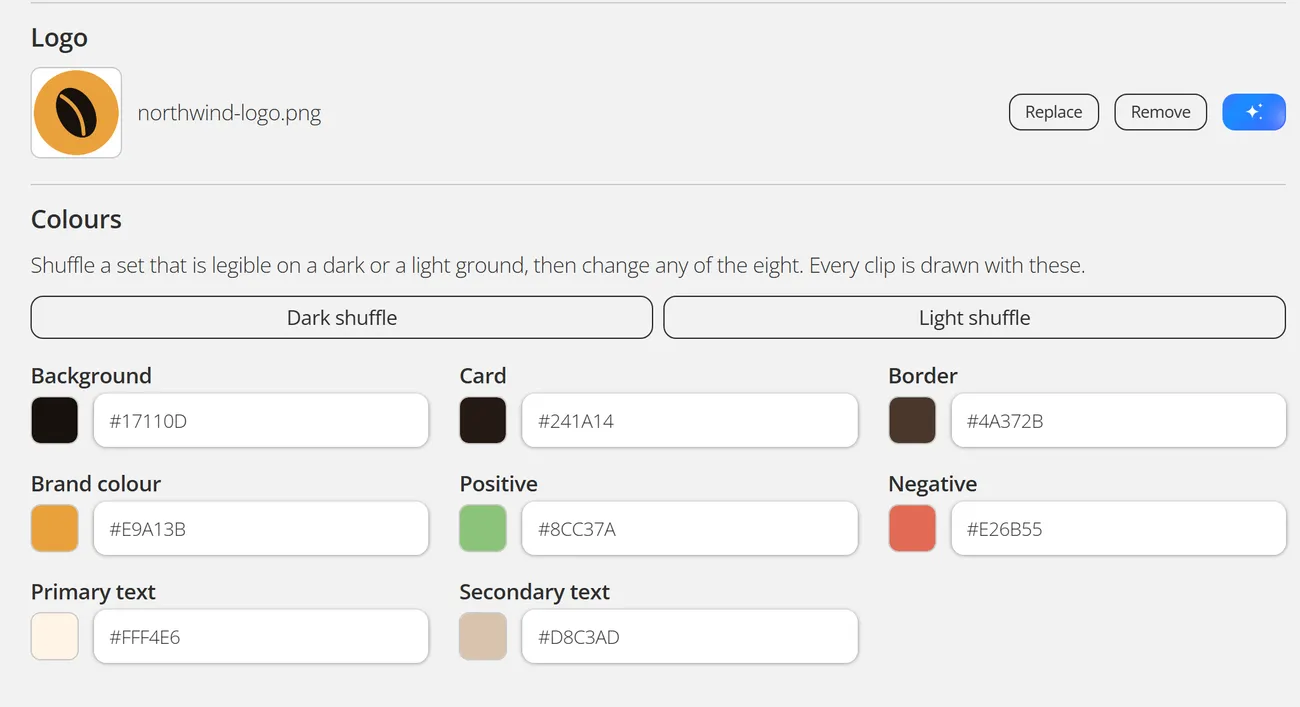
For Northwind, the espresso and roast browns became Background and Card, a darker bark became the Border, the caramel accent became the Brand colour, and the guide’s off-white and latte tones became the two text colours. If your guide does not say which colour goes where, Dark shuffle and Light shuffle propose a set that is legible on a dark or a light ground, and you change any of the eight from there. Configure with AI, at the top of the dialogue, can set them from a description, with an AI key of your own.
The one rule that matters: text must be legible on the surface it sits on. A guide’s “secondary text” grey is often too faint on a dark video ground; nudge it lighter rather than keeping it exact and unreadable on a phone in sunlight.
Step 4: the three fonts
A brand has three: the headline font, the body font, and the frame font for the brand’s own lines at the top and bottom of a clip, sized separately so a large headline does not drag a large legal line with it. Each is either one of 22 fonts already installed (among them Open Sans, Inter, Lora, Playfair Display, Montserrat, Roboto and Poppins) or your own font file.
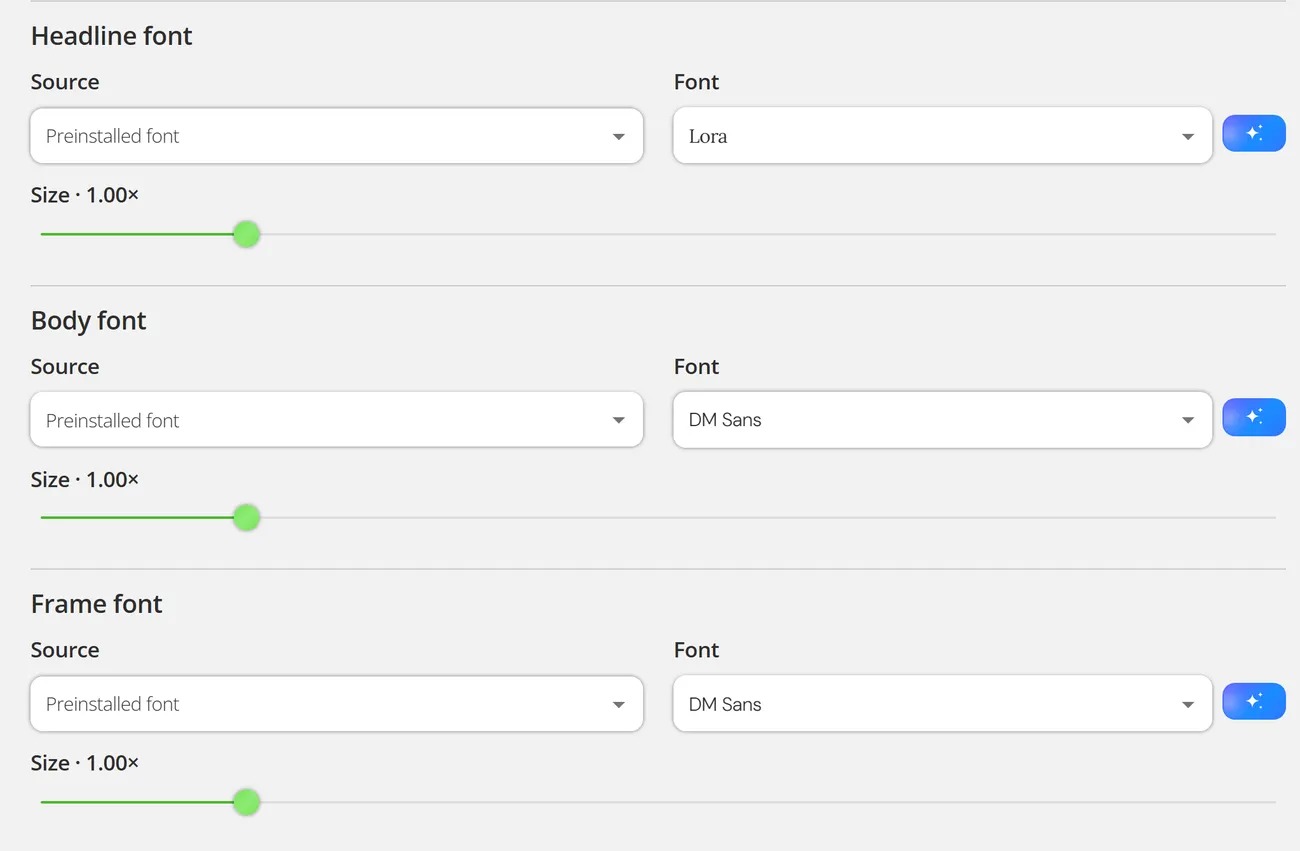
Two things to check before uploading your own: that the licence allows embedding the font in video, which some desktop licences do not, and that it carries the scripts your channels publish in. Letters a font does not have, Korean, Japanese, Thai or Hebrew for example, are drawn in Noto Sans, so a clip still renders in every language, but in a face that is not yours. Northwind’s guide names a serif for headlines and a clean sans for everything else, so Lora and DM Sans from the installed list did the job.
Step 5: the sound
If your guide has a sonic identity, a jingle or a music bed, upload it as the brand’s Sound and choose under Used for whether it plays over the clip only, or over the stinger, the intro and the outro too. It starts once and plays across all of them, starts again if it is shorter than what it covers, and fades out over its last second. An intro or outro that brings its own sound keeps it unless you choose otherwise.
Step 6: the words on every clip
Under Localizable properties sits what a brand says rather than what it looks like. Texts on the clip are two lines across the top of every clip and two along the bottom, each pair drawn as one line with a dot between the halves. The top is usually the name and the website; the bottom the legal entity and a standing sentence such as “Prices may vary by branch”. This is where the legal line from your style guide goes, once, instead of being typed into every video.
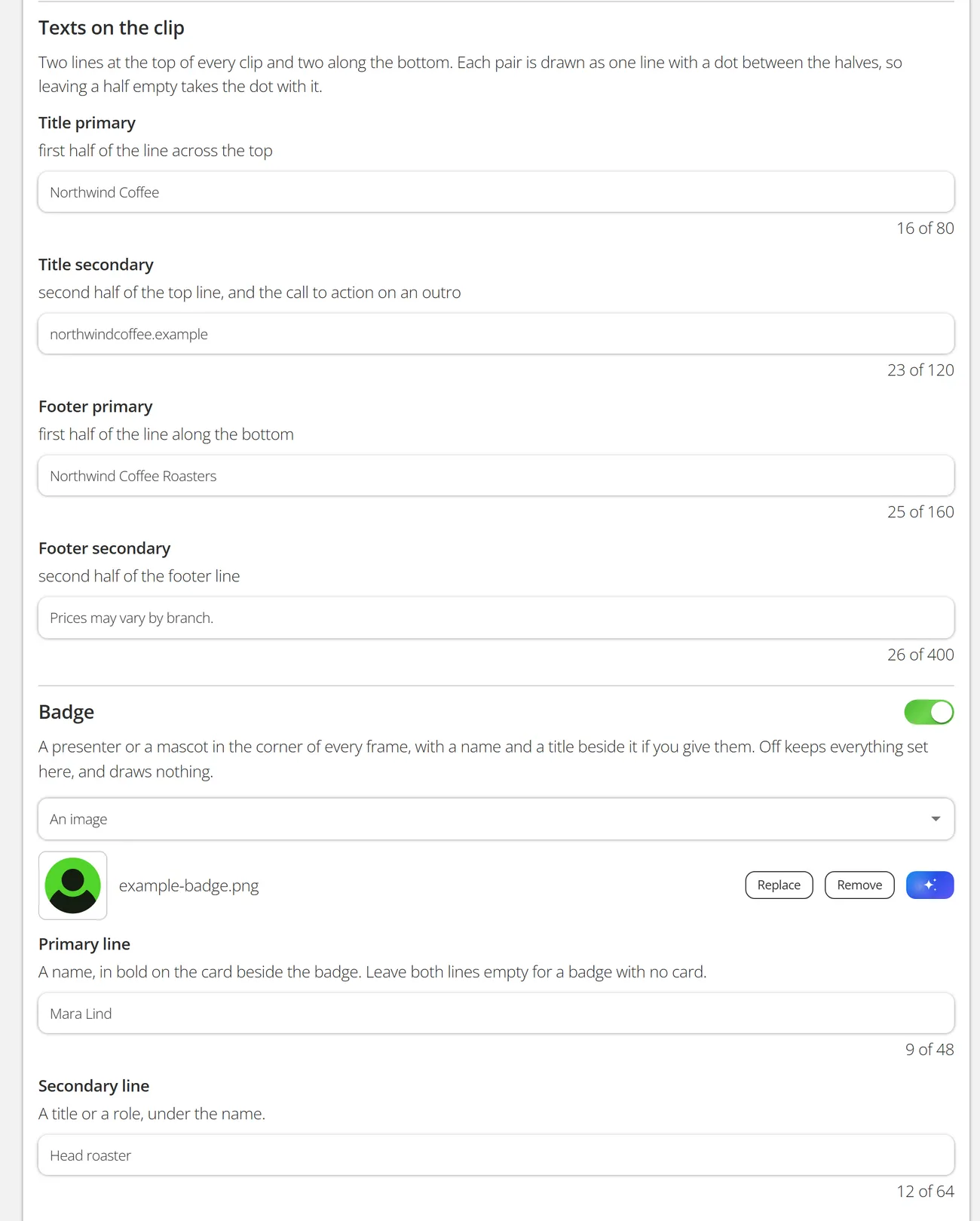
The Badge is a presenter or a mascot in the corner of every frame: a picture or a short video, a name and a role. Northwind uses its head roaster, Mara Lind; a brand without a face switches the badge off, and nothing is drawn.
Step 7: background, stinger, intro and outro
A finished clip plays the stinger first, then the intro, the clip itself and the outro, all over the brand’s background. Each has its own switch, and each takes a file per shape (9:16, 4:5, 1:1, 16:9 and 2:3) and one Universal file, used in every shape that has none of its own, scaled to fill the frame and cropped from the centre. So a universal background should keep what matters in the middle and leave the edges to spare; a shape with neither file falls back to the first design colour for the background, and plays nothing for a film.
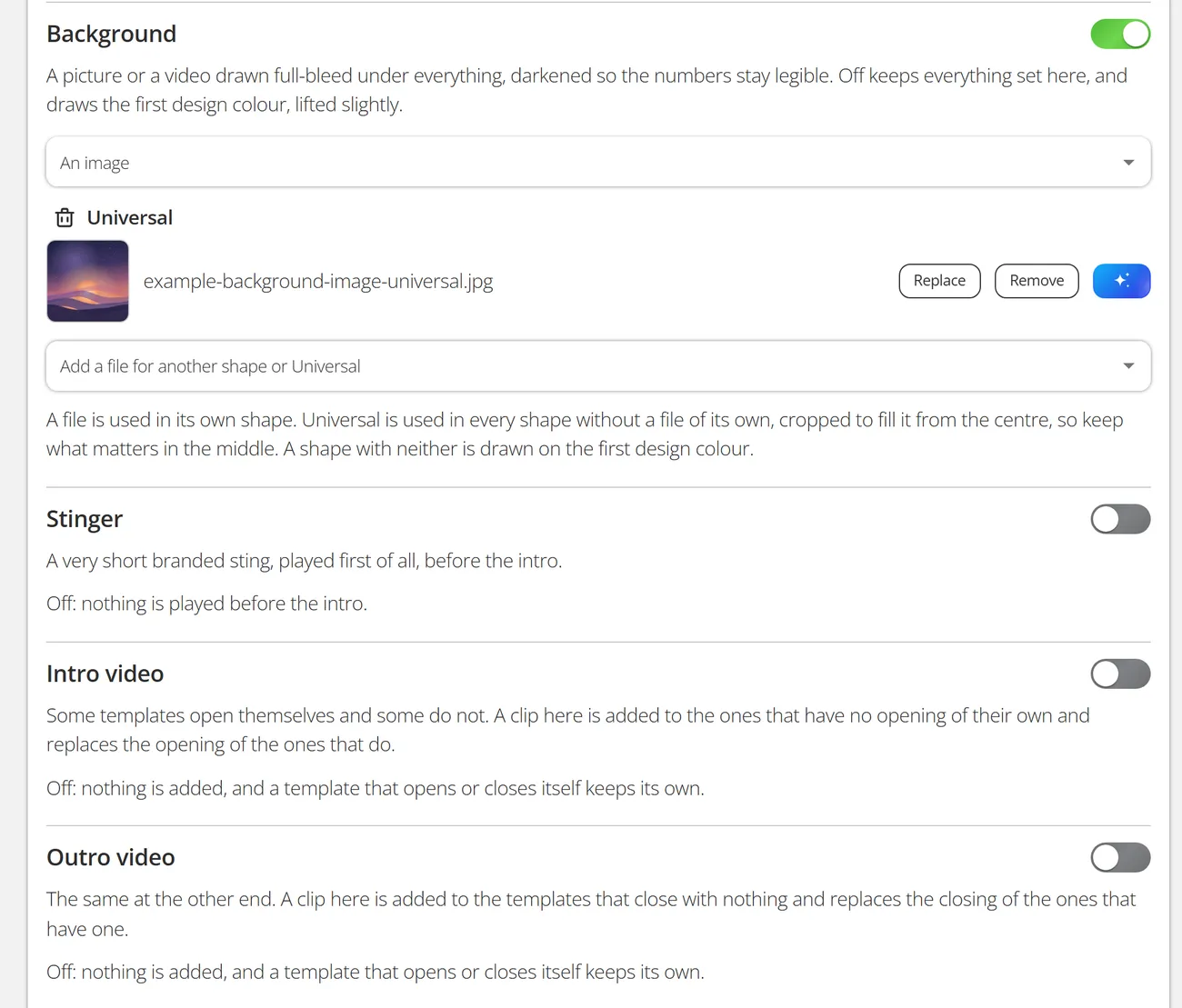
If your guide has motion design, an animated logo or an end card, upload it here. If it does not, Create one with Reelwire, on every row of the stinger, intro and outro lists and on the background when it is a video, makes the film from Reelwire’s own templates, already wearing the brand. Save the colours first, since the films wear the brand as last saved.
Step 8: the text under every post
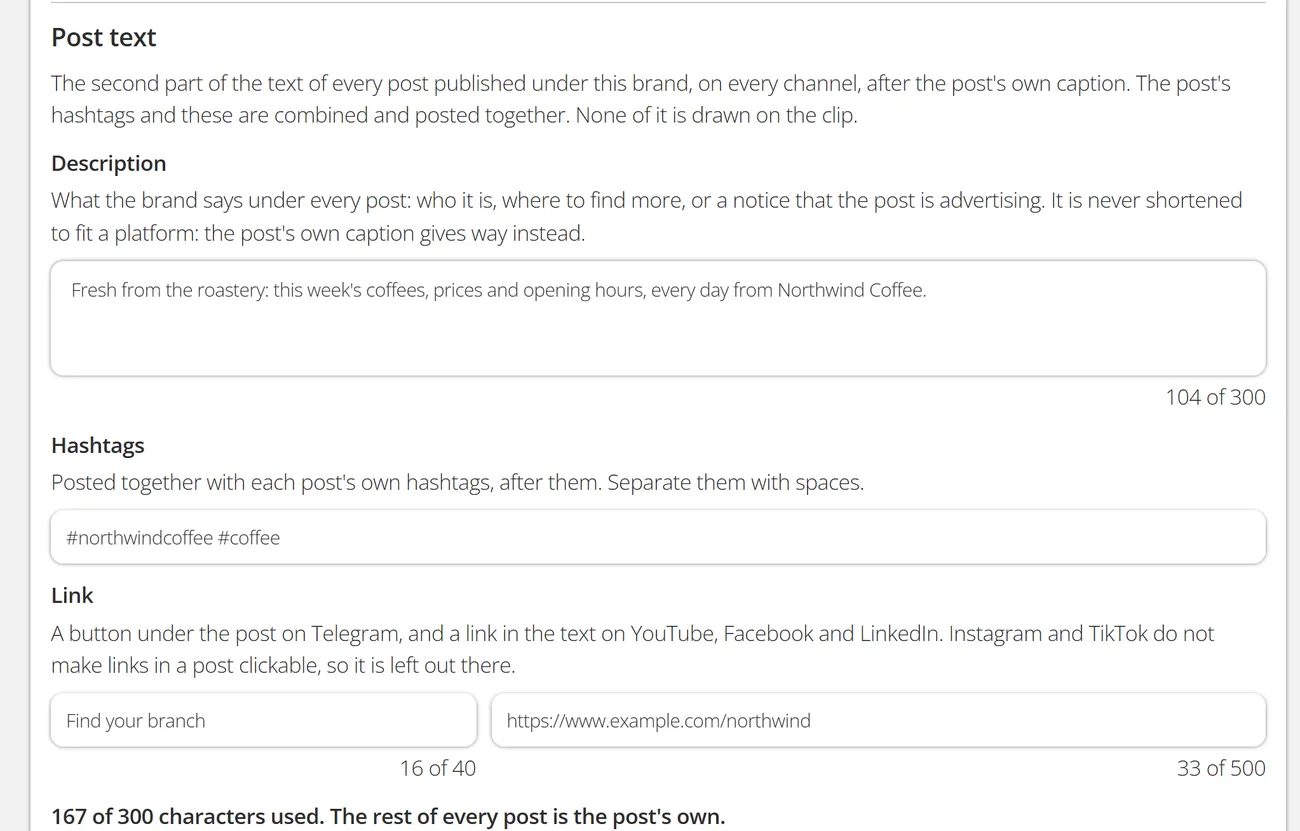
Post text is what the brand says under every post it publishes, after the post’s own caption: a description, hashtags and a link. The three share 300 characters, and the editor counts them, because that is the room the brand takes out of every post; the post’s own caption gives way to fit around it. The link becomes a button on Telegram and a link in the text on YouTube, Facebook and LinkedIn; Instagram and TikTok do not make links in a post clickable, so it is left out there.
Step 9: languages
Colours, fonts, the logo and the sound are deliberately the same in every language: a German channel in a different palette would be a different brand. What can differ is what the brand says. Add further language adds a section in which you tick only the fields that differ, the legal line in German, a badge role in Spanish, a different link for France, and everything left unticked falls back to the default. Reelwire draws 186 languages, each in its own script.
Step 10: check it on real clips
On the right of the editor, the Review draws a mock clip in your colours and fonts. It is an illustration, not one of your clips: every template has its own layout and graphic design, and what they all take from the brand is its colours, its fonts and its files. To see the real thing, make a clip in Clip studio with Create clip, choosing the brand.
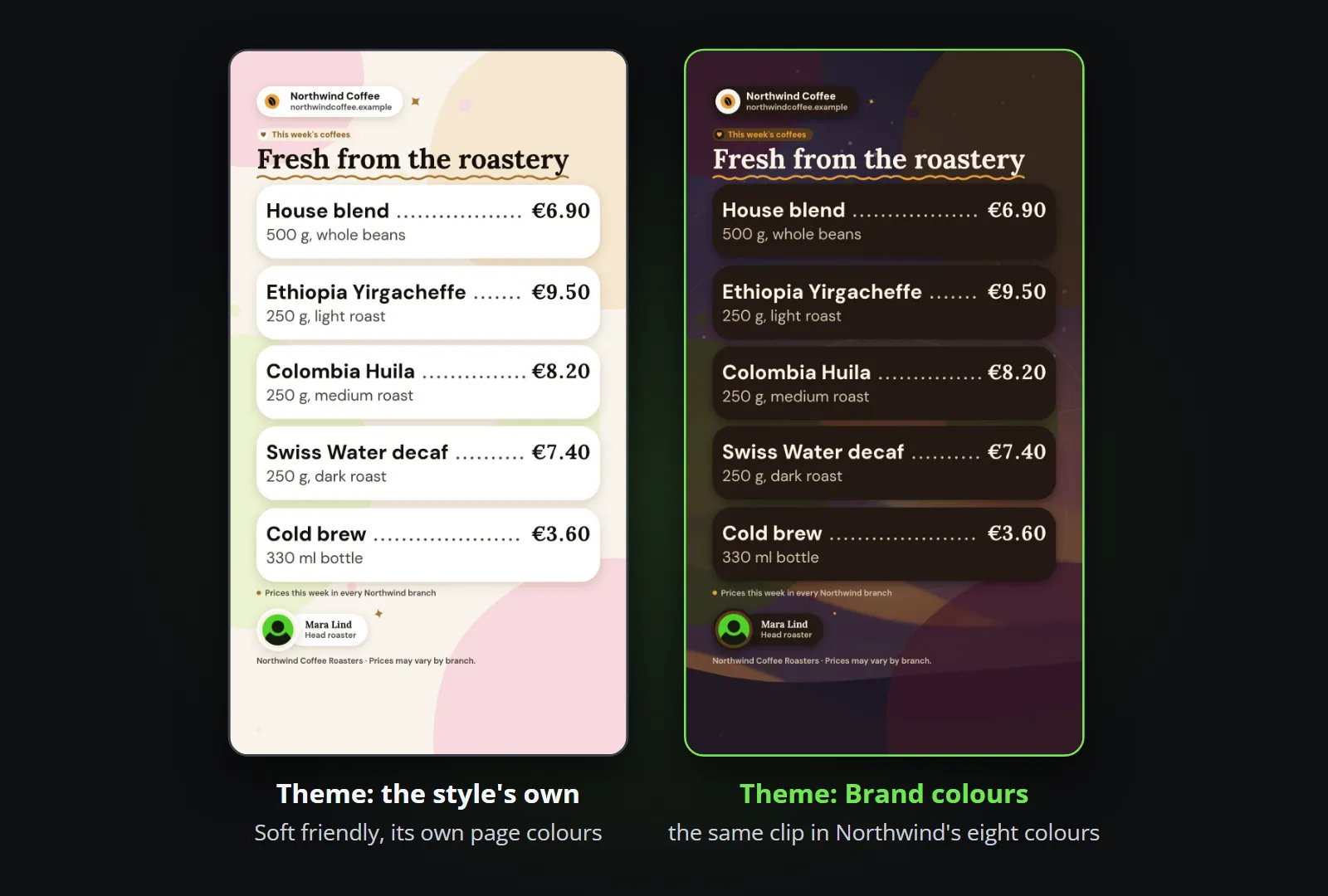
One setting there surprises people. Every template has a Theme in its look settings: the style’s own colours, your Brand colours, a light or dark page tinted with your brand colour, or your brand colour as the page. A style with a strong look of its own uses its own colours unless you ask for yours, and that is how Northwind’s first test clip came out pink and cream:
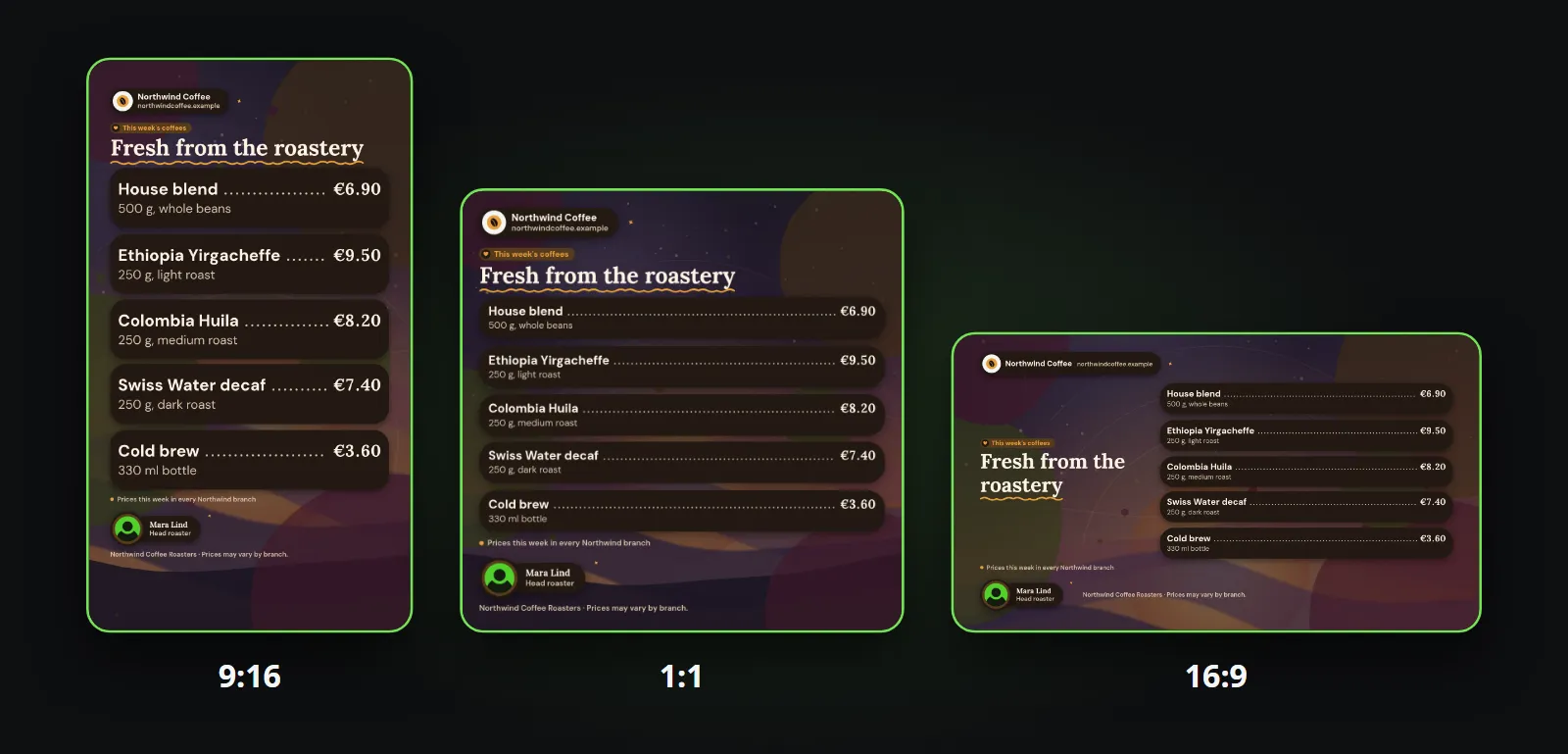
Check three things on the test clips: the logo sits well at the size the template draws it, the text colours are legible on the cards in every shape, and the legal line fits the bottom of the narrowest shape without being cut. Then check the shapes your channels actually post in:
What to watch out for
- Saving changes every channel wearing the brand. That is the point of a brand, and still the thing that surprises people. Used by on the Brands screen shows which channels you are about to change.
- A logo with margins. Empty space in the file becomes empty space on every clip. Crop it tight.
- Exact but illegible colours. A style guide’s colours were chosen for print or a website. On a phone screen, in a feed, a faint grey on a dark brown disappears. Adjust for legibility.
- Font licences. A desktop licence may not cover video. Check before uploading your own files.
- A background that does not survive the crop. A universal background is cropped from the centre to every shape: keep the subject in the middle.
- One brand for two looks. A sister brand, or the same look with another logo, is a Duplicate: it copies everything, and you change what differs.
Once the brand is right, every clip is: the thousandth looks like the first, which is the whole case made in your thousandth clip should look like your first. The same brand lays out in every aspect ratio, as described in one composition, every aspect ratio, and if your current brand kit lives in Canva, Reelwire vs Canva covers what moves across. The brands manual has every setting in detail.
Bottom line
A style guide only works if everybody follows it every time, and a person making videos on a busy day is exactly who does not. Put the guide into a brand once, check it on a few real clips, and the rules are applied to every clip after that, by every channel, without anybody having to remember them.
Try it with your own style guide on Reelwire’s free plan: 25 videos a month, no card, and the same brand editor as every paid plan.
Frequently asked questions
Can I use my own brand font in Reelwire?
Yes. Upload the font file (WOFF2, WOFF, TTF or OTF) to the headline, body or frame font, or pick one of the 22 fonts already installed. Check that your font licence allows embedding in video before you upload it. Letters your font does not carry, such as Korean or Hindi, are drawn in Noto Sans so every language still renders.
How many colours does a Reelwire brand have?
Eight, each with a role: Background, Card and Border for the surfaces, Brand colour for highlights and the figure that matters, Positive and Negative for up and down, and Primary and Secondary text. Dark shuffle and Light shuffle propose a legible set you can then adjust.
Does changing a brand change clips that were already published?
Clips already rendered keep the look they went out with. Every channel wearing the brand uses the new settings from the next clip on, and the post text under earlier posts is read from the brand, so it changes with it. Press Used by before saving to see which channels you affect.
Can one brand work in several languages?
Yes. Colours, fonts, logo and sound are the same in every language; what a brand says (the lines on the clip, the badge, the films and the post text) can differ per language. Add a language and tick only the fields that differ; everything else falls back to the default.
Do I need a designer to set up a brand?
Not if you have a style guide: the settings follow its chapters. A designer helps with the files, a logo without margins, a background that survives being cropped to every shape, an intro and an outro. Reelwire can also make the stinger, intro, outro and a background video from templates of its own.

Co-founder of Reelwire. Every organisation has facts worth showing, its prices, results, releases and warnings, and the vision is that every one of them can show those facts every day, on brand, in every format and language, without a production team behind each post. Your data, in motion: correct, recognisable and consistent from the first clip to the thousandth.